Ways To Use Remote
Gather some inspiration here and then let you imagination go wild.
Stream Automation
Example 01
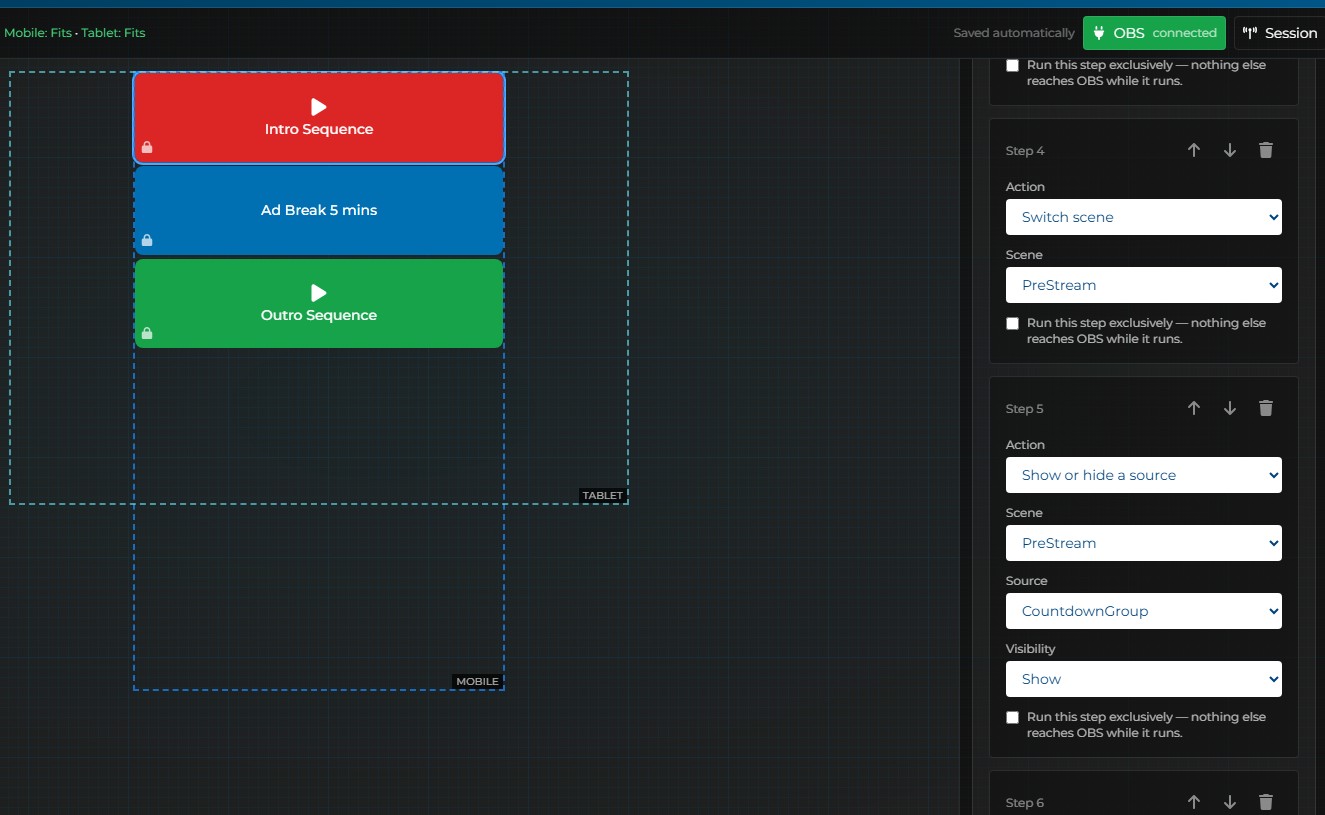
Build your repeated show sequences once, then run them in the same order every time the stream goes live.
- Sequence scene changes, source visibility, audio states, recording, streaming, and replay-buffer controls in one macro.
- Use deliberate delays between actions when OBS, an animation, or your presenters need time to catch up.
- Create separate sequences for opening the show, moving between sessions, taking an ad break, and shutting down safely.
Sequence matters: put prerequisites first, add only the delays the production needs, and test the complete macro before using it live.
Memes & Media Drops
Example 02
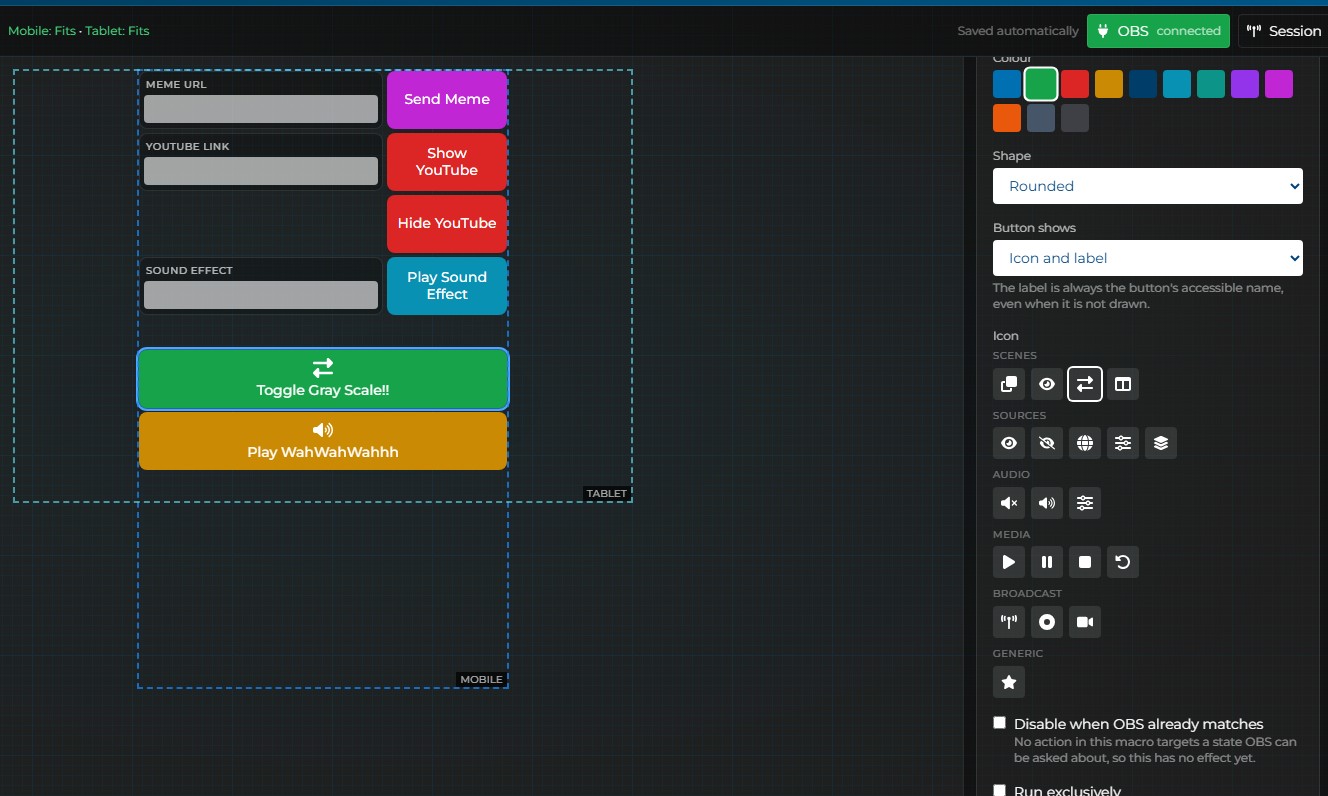
Let trusted moderators surprise you with memes, reaction clips, and audio drops without giving them the keys to OBS.
- Use variables with a browser source so moderators can paste a link from another website or content library.
- Combine the link change with source visibility and media restart actions, making each drop appear immediately.
- Create buttons for reactions, sound effects, celebratory clips, and a quick clear action when the joke has landed.
Keep it playful and controlled: the streamer chooses the browser sources and macros; moderators choose the moment and the content link.
Broadcast Operator
Example 03
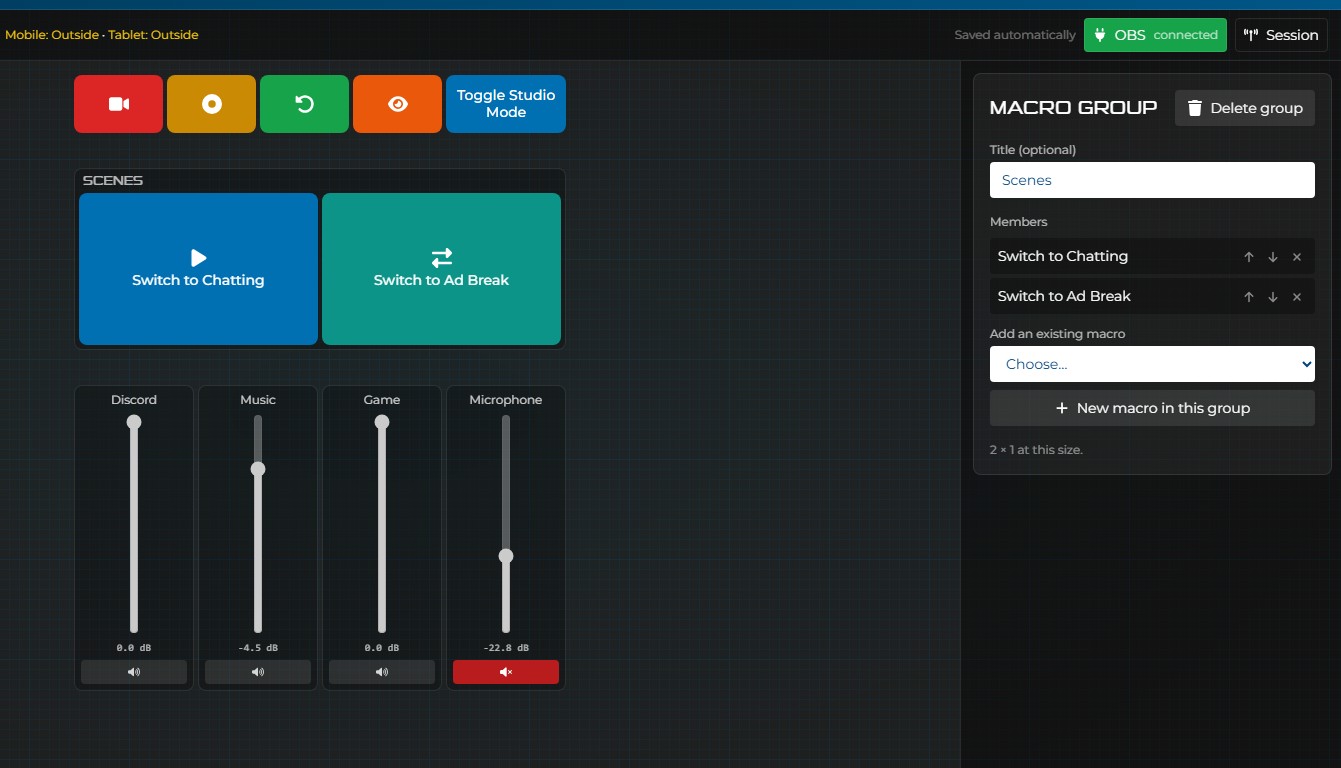
Give a co-host or producer the routine controls they need while the main operator concentrates on what's important.
- Provide focused buttons for lower thirds, replay cues, cameras, and approved audio controls.
- Expose named variables for driver names, round numbers, or other overlay content the assistant updates during the show.
- Keep technical and high-risk actions off the published surface while OBS credentials remain on the host machine.
A good assistant layout is role-specific: fewer, clearly labelled controls are faster and safer during a live broadcast.
Transition Management
Example 04
Ever wonder how big esports events reveal a winner with a transition made for that team? You can do that too.
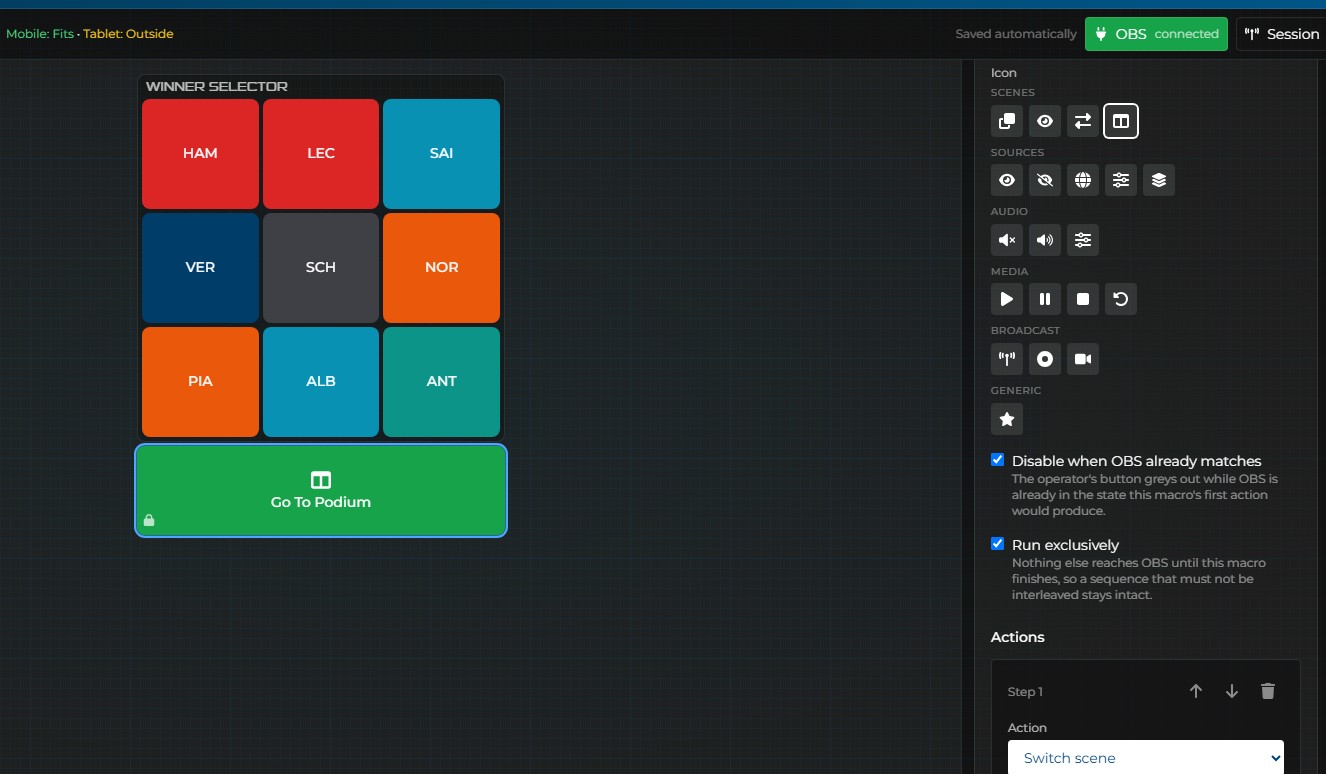
- Create a setup macro for each team that changes the winner-screen artwork, browser content, colours, or visible sources.
- Pair those team buttons with one shared Take Winner Screen macro that selects the transition, prepares the winner scene, and takes it to air.
- Reuse the same pattern after every match, adding teams without rebuilding the transition sequence itself.
Team macros decide what the audience will see; the shared transition macro decides how they see it arrive.
Ready to adapt an example for your own production?
Explore Remote